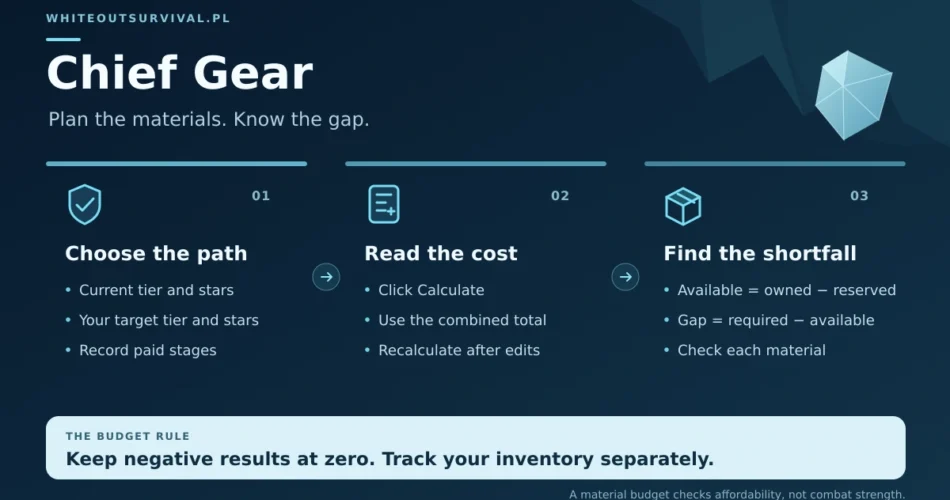
The Chief Gear calculator shows the materials required to move from your current gear to a chosen target. This guide helps you check whether your available inventory can cover that cost, account for materials reserved for other upgrades and compare affordable plans.
You will need your current gear levels, intended targets and available counts of Hardened Alloy, Polishing Solution, Design Plans and Lunar Amber. The calculator does not have inventory fields, so keep the subtraction in a separate note or spreadsheet.
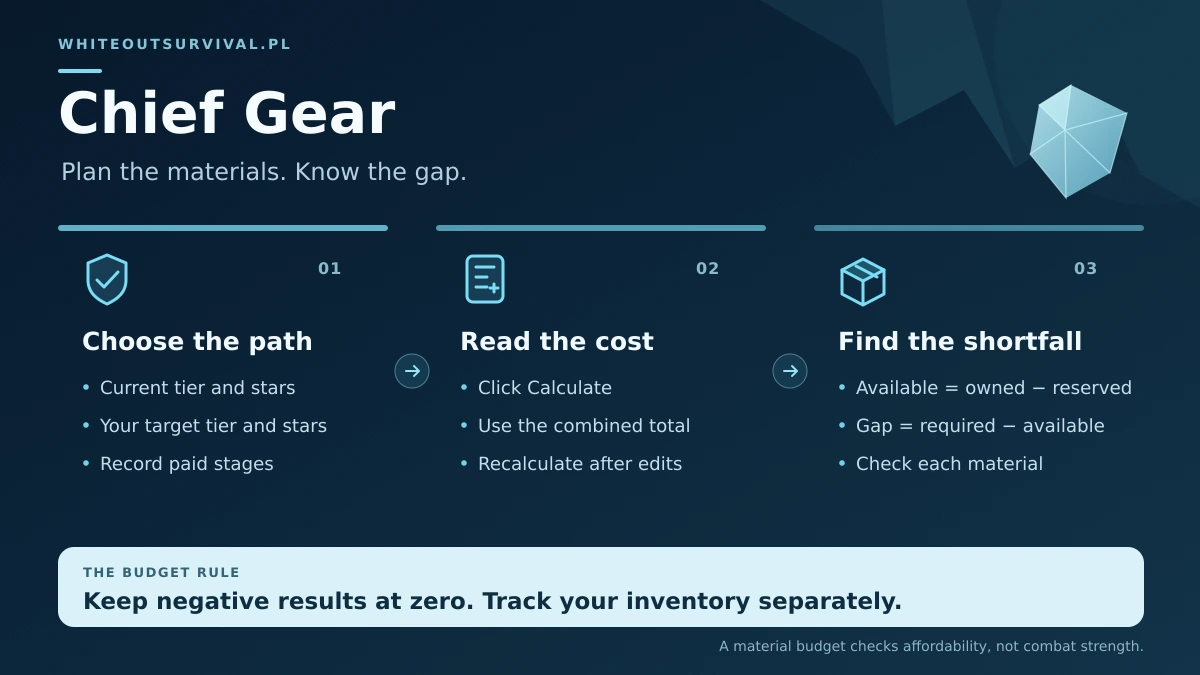
1. Enter the exact current state of each piece
The six slots are Helmet, Armor, Ring, Accessories, Belt and Weapon. Each has its own Current and Target selection. Set pieces individually, even when several share the same colour: their stars or completed upgrade stages may differ.
Match the complete Current label, including the tier, stars and any green-circle stages already completed. In these labels, a green circle marks an upgrade stage whose material cost is already paid; a red circle marks a stage still to complete. The menus extend through Red T4 with three stars. After choosing Current, choose Target deliberately; changing Current can also change the selected Target.
- Both fields blank: the piece is excluded from the calculation.
- Current blank, Target selected: the calculator starts from None and includes the cost of obtaining the initial gear.
- Current selected, Target blank: the result assumes no upgrade for that piece.
For a piece you already own, always enter its current state. For example, blank Current to Green one-star produces 5,300 alloy and 55 solution, while Green to Green one-star produces 3,800 alloy and 40 solution.
2. Calculate and read the combined material total
Click Calculate, then find Required Materials. Check each piece’s starting and ending state before copying the Total row. That row already adds the selected pieces together.
One piece moving from Green to Green one-star costs 3,800 alloy and 40 solution in the calculator. Selecting that upgrade for all six pieces gives 22,800 alloy and 240 solution, with zero Design Plans or Lunar Amber. Do not multiply that combined total by six again.
Click Calculate after every selection change. The existing results stay on screen until you recalculate. A new dropdown selection beside an old total can otherwise make the revised plan look cheaper or more expensive than it is.
3. Include progress already paid for
Partial stages matter most when a single transition has several material payments. Suppose a piece is Red T3 with three stars and has completed two of the five stages toward Red T4. Choose the Current label with two green circles and three red circles, then set Target to Red T4.
For that selection, the calculator gives 72,000 alloy, 900 solution, 150 plans and 24 amber. Starting instead from the plain Red T3 three-star label gives 120,000 alloy, 1,500 solution, 250 plans and 40 amber.
The difference is the two stages already paid for: 48,000 alloy, 600 solution, 100 plans and 16 amber. Choosing the exact partial state keeps those earlier payments out of your remaining-cost budget.
4. Subtract available inventory for each material
Start with materials you own, then deduct anything you have set aside for another upgrade. Use the same two calculations separately for all four materials:
Available = max(0, owned − reserved)
Shortfall = max(0, required − available)
Here, max(0, …) means record zero whenever the subtraction gives a negative number. Extra alloy is a surplus of alloy; it does not erase a shortage of plans or amber.
Use the partial Red T4 transition above as an example. Imagine owning 80,000 alloy, 950 solution, 130 plans and 30 amber. You reserve 100 solution and 10 amber for another piece. Your available balance and remaining gaps are:
| Material | Required | Available | Shortfall |
|---|---|---|---|
| Hardened Alloy | 72,000 | 80,000 | 0 |
| Polishing Solution | 900 | 850 | 50 |
| Design Plans | 150 | 130 | 20 |
| Lunar Amber | 24 | 20 | 4 |
These inventory and reservation amounts are hypothetical. This plan still needs 50 solution, 20 plans and 4 amber. Alloy is already covered. Keep all three shortages on your collection list; clearing only one will not fund the full target.
5. Compare two plans against the same balance
For a separate early-gear example, suppose all six pieces are Green and you have 24,000 alloy and 250 solution available after reservations. Compare these alternatives:
| Plan | Alloy cost | Solution cost |
|---|---|---|
| A: All six pieces to Green one-star | 22,800 | 240 |
| B: Two pieces to Blue; four stay Green | 21,600 | 220 |
Both alternatives fit the balance and require zero plans or amber. Plan A leaves 1,200 alloy and 10 solution. Plan B leaves 2,400 alloy and 30 solution; its cost is twice the calculator’s 10,800 alloy and 110 solution for one piece from Green to Blue.
Calculate each alternative separately and record its targets. These are alternative uses of one inventory, so you cannot fund both from that balance. This comparison checks affordability. Different target sets can provide different set bonuses, so a cheaper plan is not automatically stronger in combat. Check the bonuses shown in game before committing materials.
6. Record the plan before closing the calculator
Keep the selected pieces, exact Current and Target labels, material totals and shortages together. There is no Reset button; clear a piece by choosing the blank placeholders for both Current and Target, or reload to clear the whole plan. Reloading also removes the results, so save your notes first.
After an upgrade, update both the current gear state and remaining inventory. Recalculate from that new starting point before committing materials to the next piece.
